
To connect your domain name registered on 1and1.com, follow these steps:
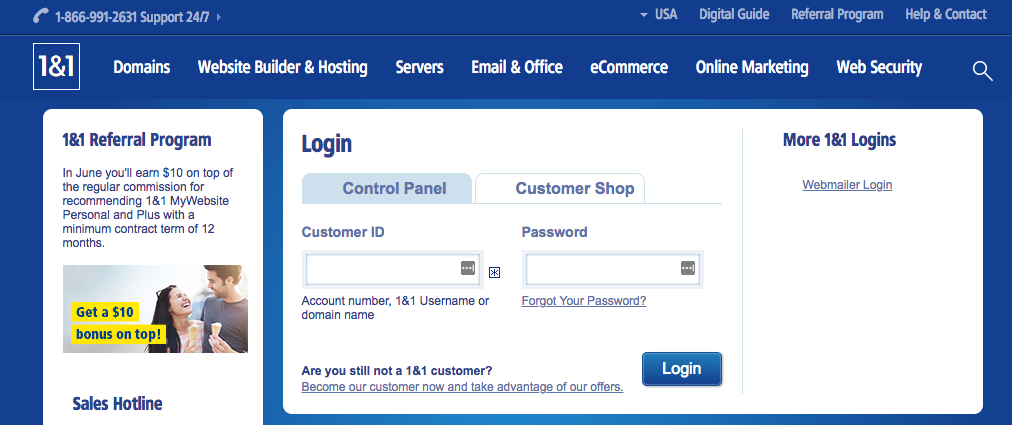
1. Go to 1and1 login page and Login with your customer ID and password.
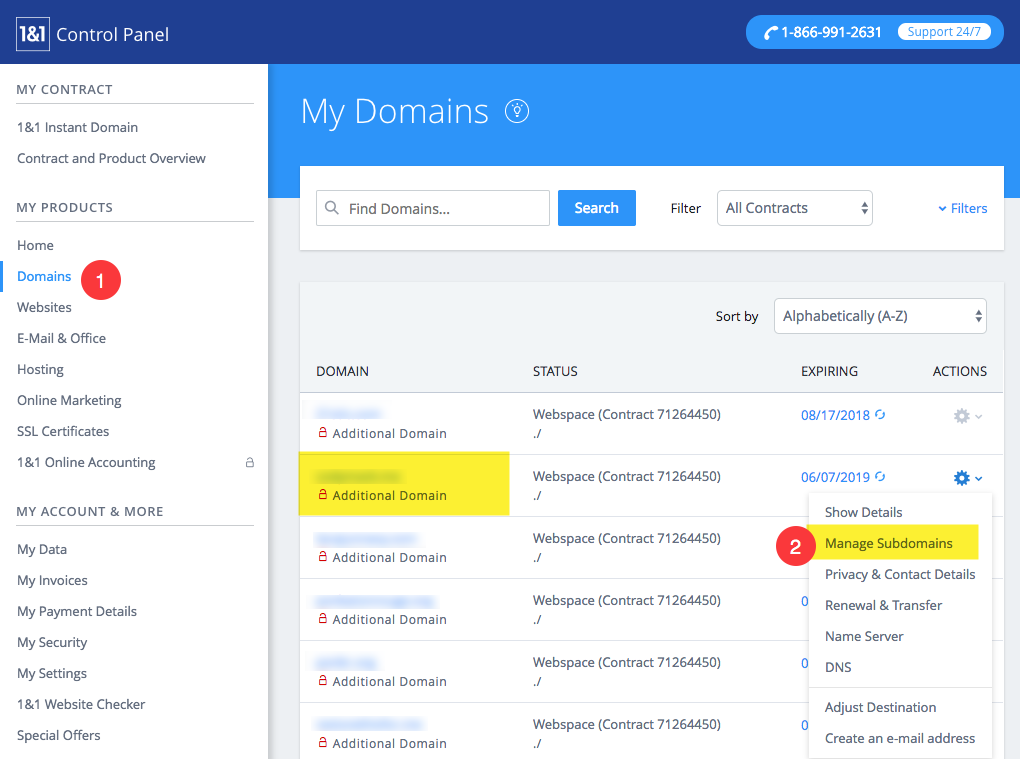
2. As you logged in, Go to Domain section from the left-hand side panel and click on setting icon of the particular domain that you want to connect with your Pixpa website. Select Manage subdomains now.
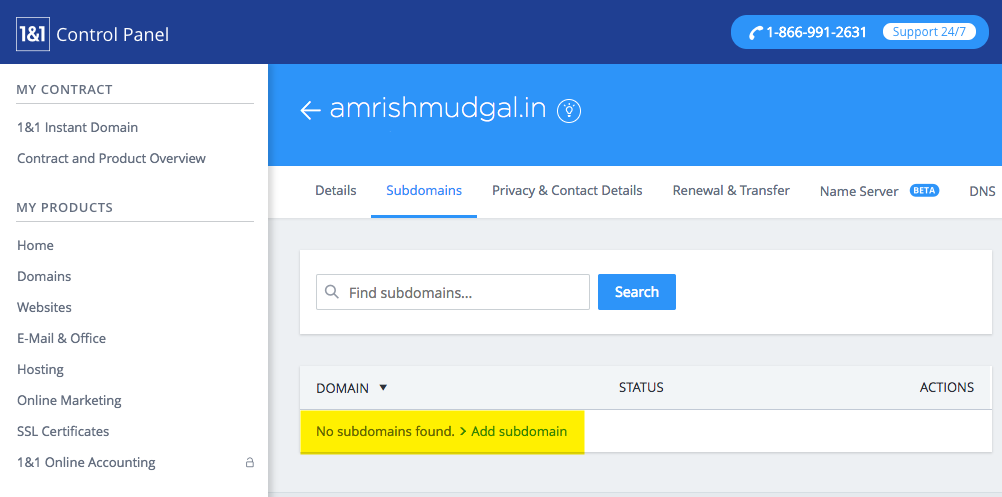
3. You need to create a www subdomain. Click on “Add subdomain” link.
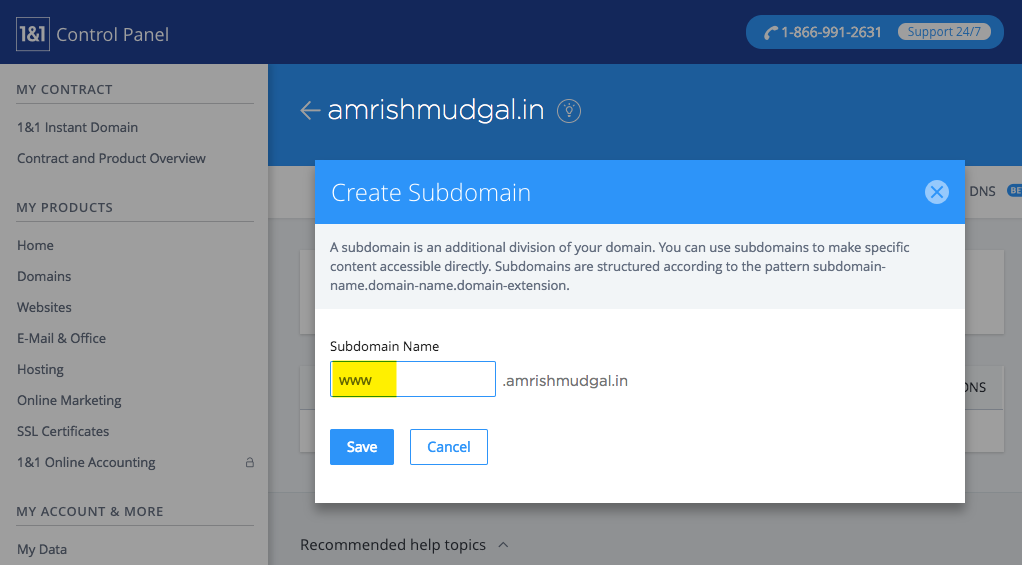
4. You would see a popup window. Enter www and hit save button.
5. Click on DNS settings of this www sub-domain.
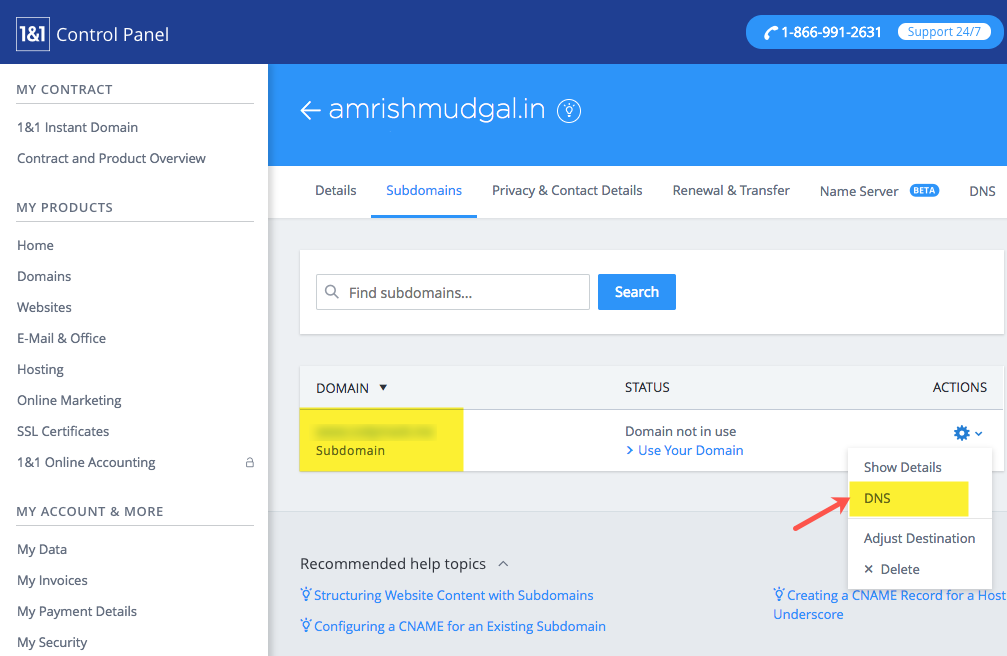
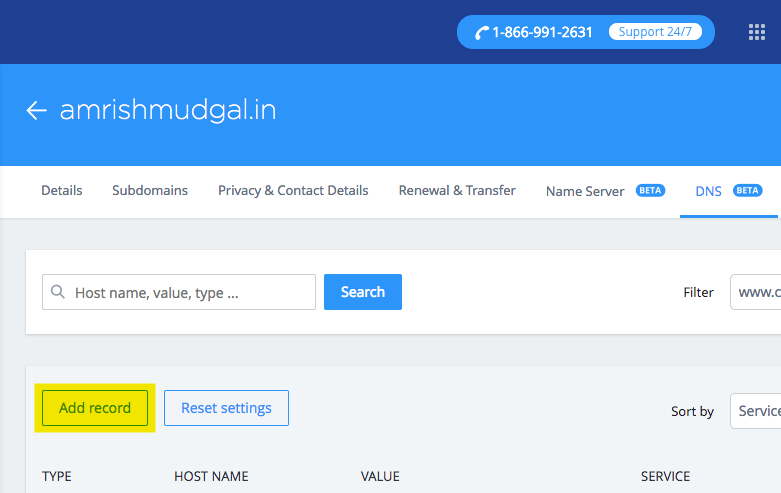
6. You would see all the DNS records here. Click on Add Record button.
7. You would see a pop up window where you need to create www CNAME record pointing to “domains.pixpa.com” (Paste this string as it is)
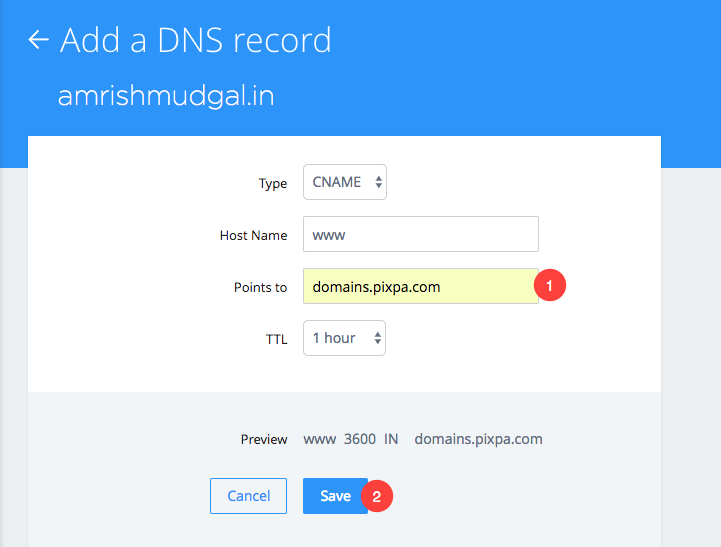
That’s it. Now we need to create a domain forwarding.
8. Go to Domain section from the left-hand side panel and click on setting icon of the particular domain and Select Adjust Destination tab.
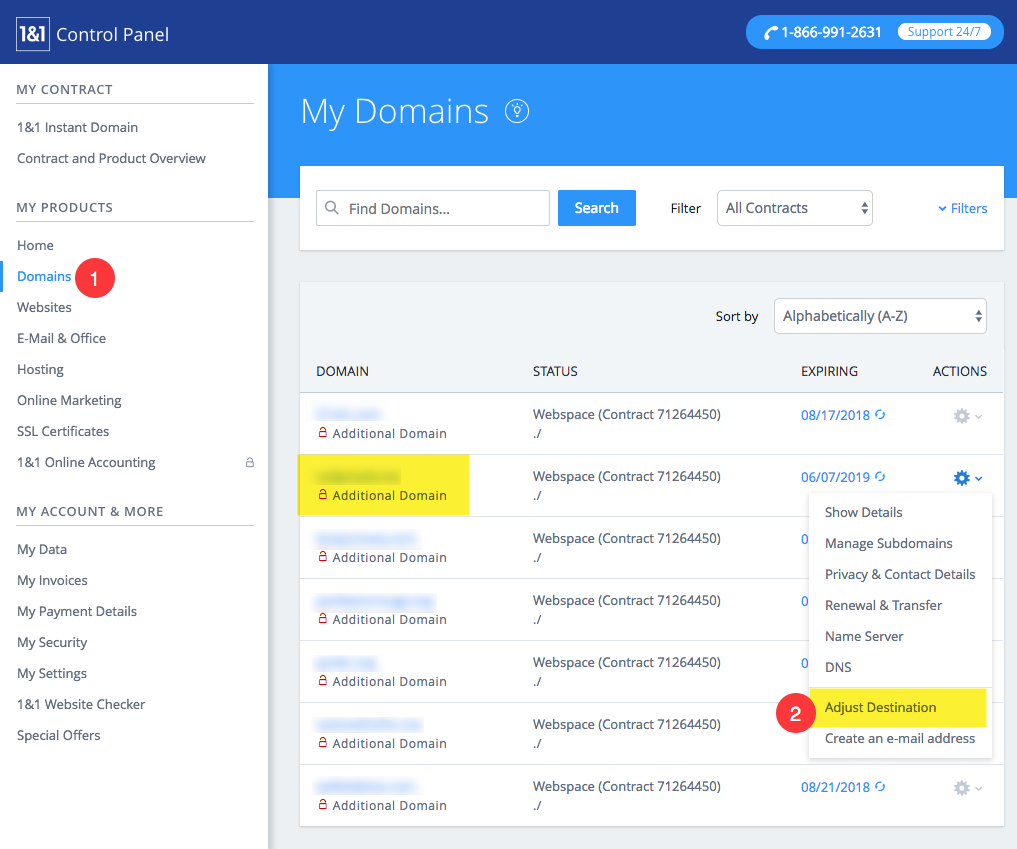
9. On the next screen, you would see the option of “Forward domain”. Click on it.
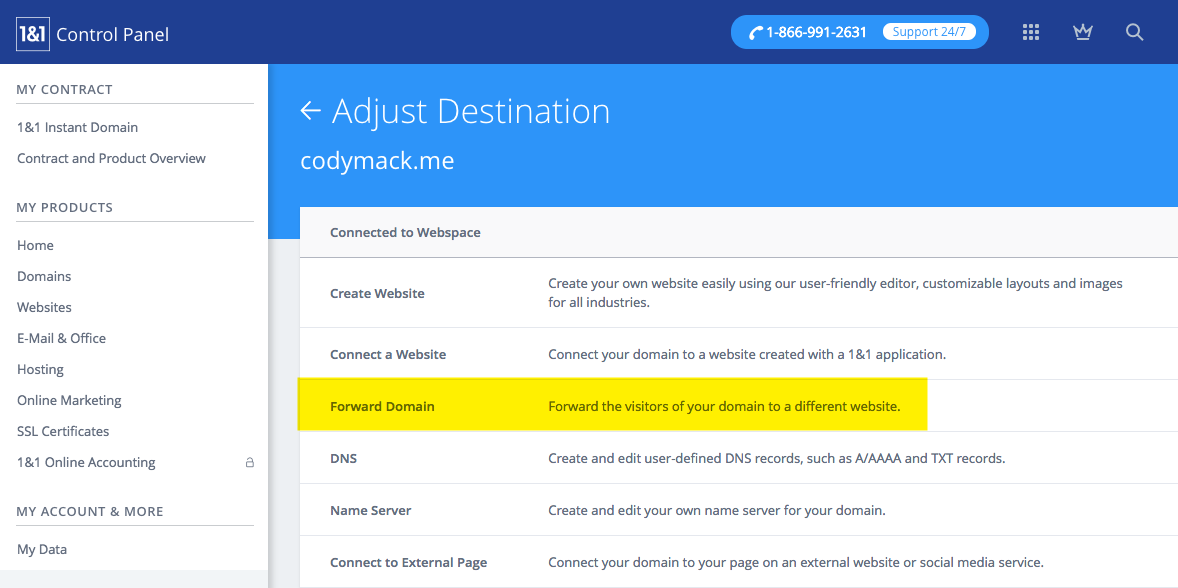
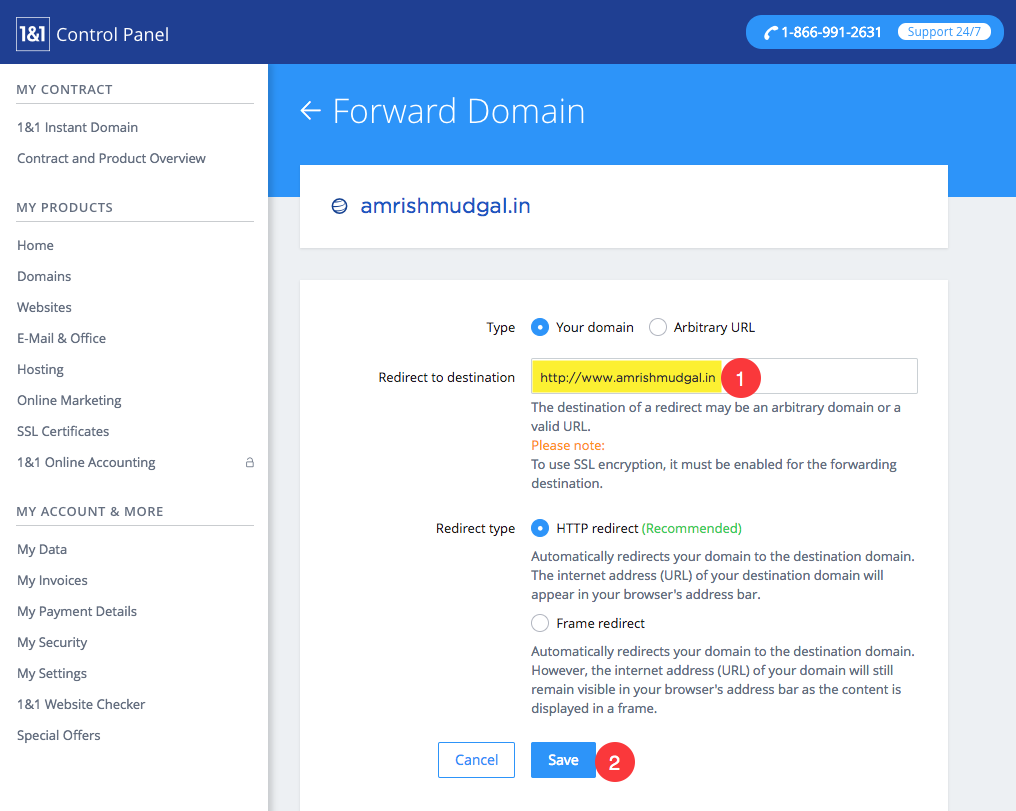
10. Here you need to enter complete URL of your domain with www prefix and hit save button.
Example: If your domain name is “amrishmudgal.in” then type “http://www.amrishmudgal.in” in the field shown below.
Now, Make a Go Live Request in the Studio
Once you have completed the above steps, you can then submit a Go Live request now.
Click on avatar icon on black sidebar to go to settings section. In the Settings section, go to the Connect Domain Name page and enter your domain name with “http://www” prefix as http://www.amrishmudgal.in
Here amrishmudgal.in domain name is an example in this help article. Request you to replace it with your domain name.