1. Home
  2. Domain Management
  3. Connect domain from Bluehost

Connect domain from Bluehost

To connect your domain name registered on Bluehost, follow these steps:

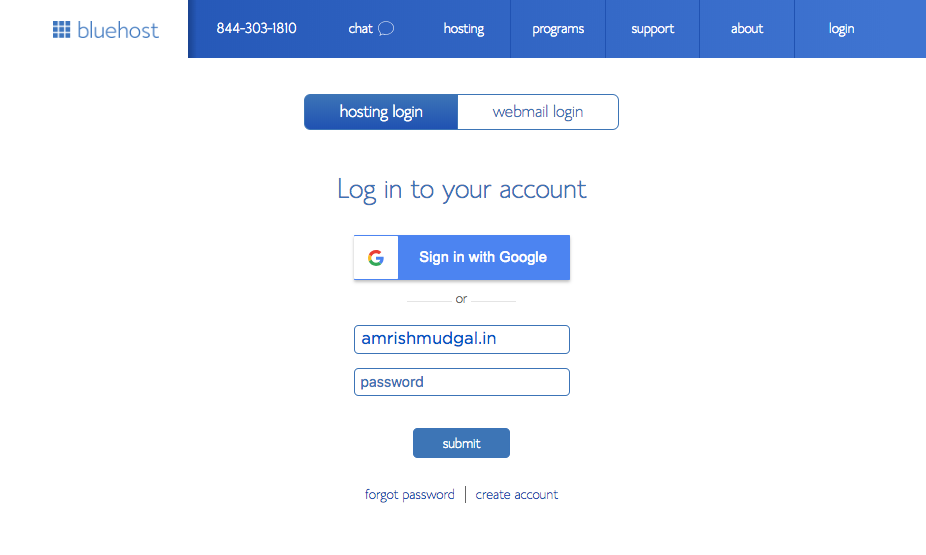
1. Go to Bluehost website and click on Login button on right top. Enter your username and password to signin in your account.
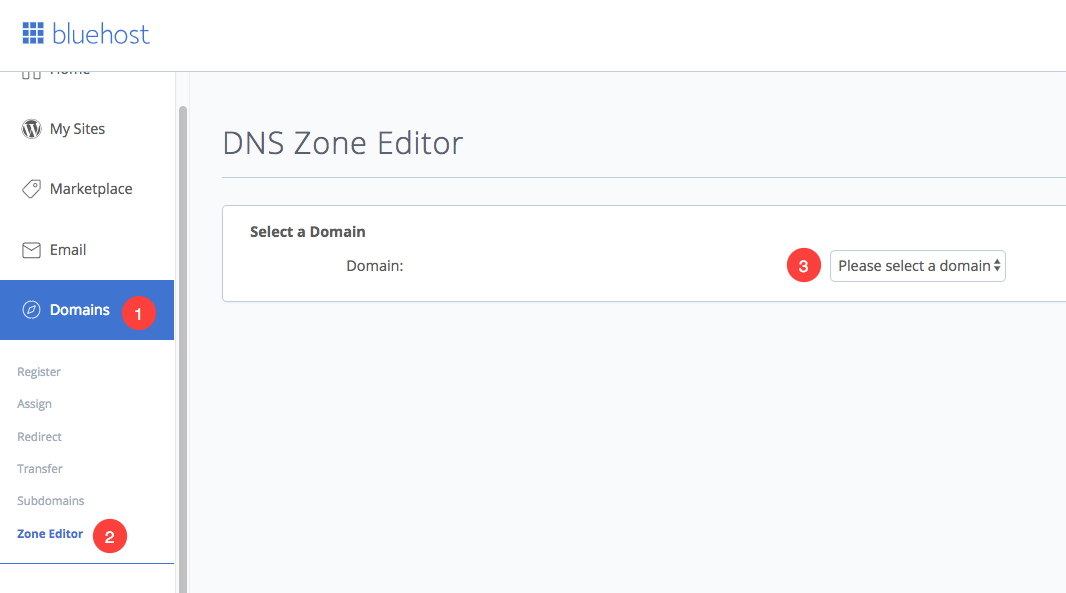
2. Click on Zone editor tab under Domain section. You would see all your purchased domains here. Now find your domain that you want to connect Pixpa website and select.
3. Here you would see all the DNS records. You need to create a www CNAME record.

Enter www (as Host Record), 600 (as TTL), CNAME (as Type), domains.pixpa.com (as Points to) and click on Add Record tab.
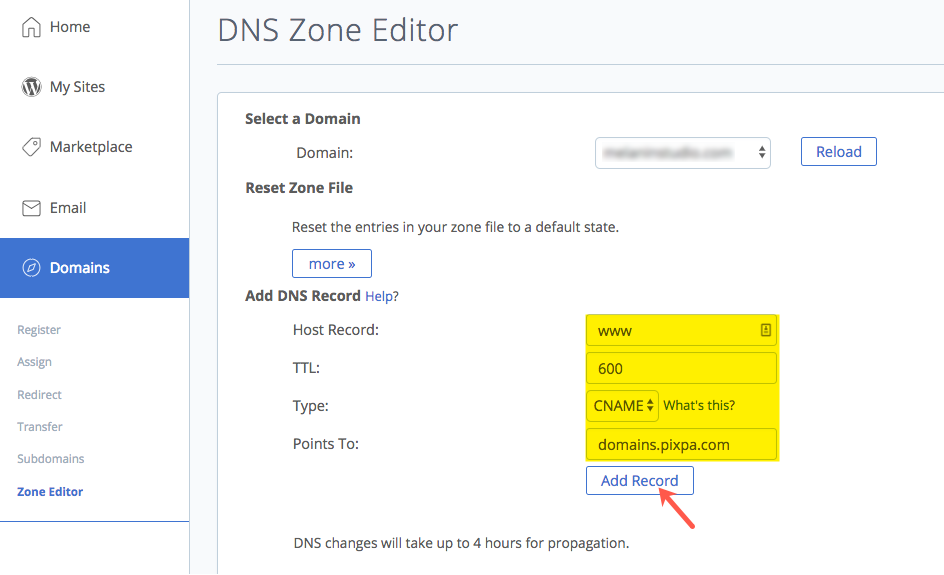
Do not replace the CNAME value with your domain name. Points to value would be “domains.pixpa.com” as it is.

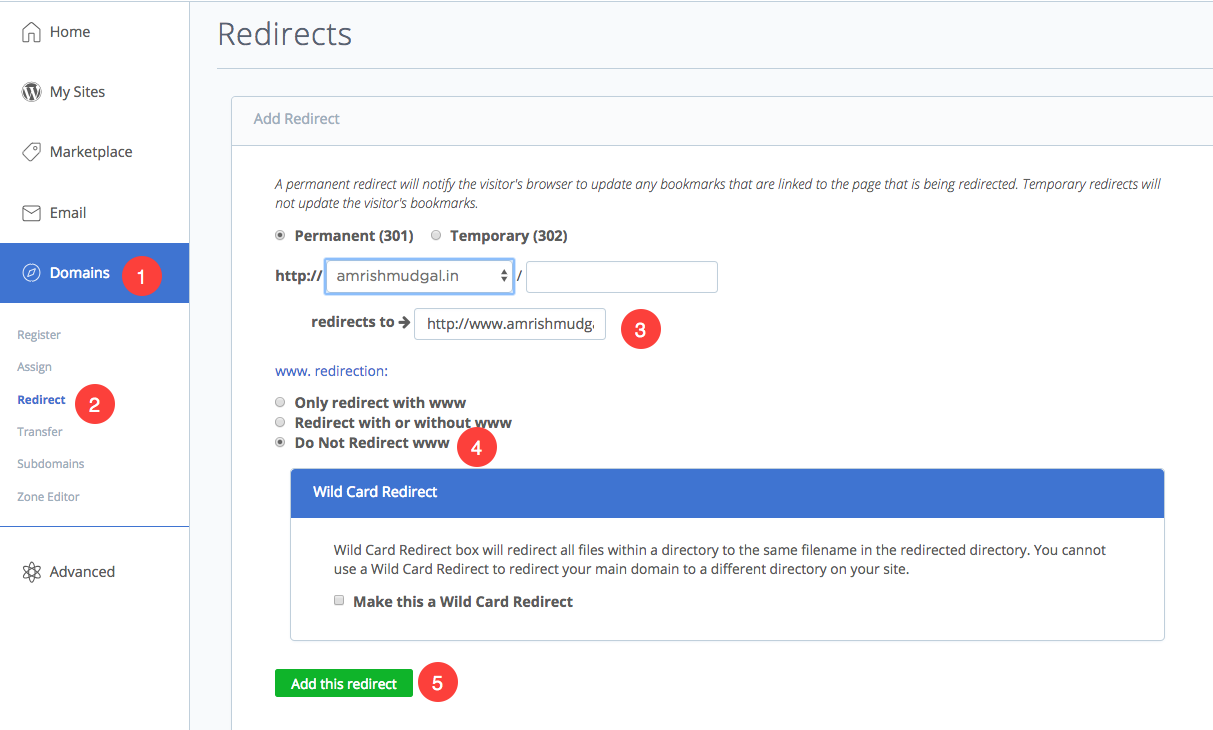
4. Now you need to add a domain redirect. Click on Redirect tab under domain section. Select Permanent (301) and select your domain.

Example: If  your domain name is “amrishmugal.in” then type “http://www.amrishmudgal.in” in the redirects to field as shown below.

Now, Make a Go Live Request in the Studio

Once you have completed the above steps, you can then submit a Go Live request now.

Click on avatar icon on black sidebar to go to settings section. In the Settings section, go to the Connect Domain Name page and enter your domain name with “http://www” prefix as http://www.amrishmudgal.in

Here amrishmudgal.in domain name is an example in this help article. Request you to replace it with your domain name.

If you need any assistance at any point through the process, email us at support@zopdealer.com

Updated on January 10, 2019

Was this article helpful?

Related Articles

Add A Comment