
Follow the steps below to add a featured vehicle:
-
- Login to the backend of your website (i.e. yourdomainname/portal)
- Click the Inventory > Manage Inventory selection at the top
- Click on the vehicle you wish to add as a Featured Vehicle
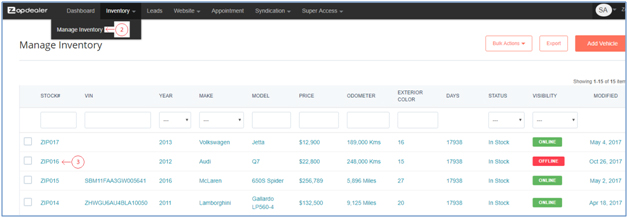
-
- On Update Inventory page > Vehicle Info tab > Pricing & Status section, change the Featured Vehicle dropdown to Yes
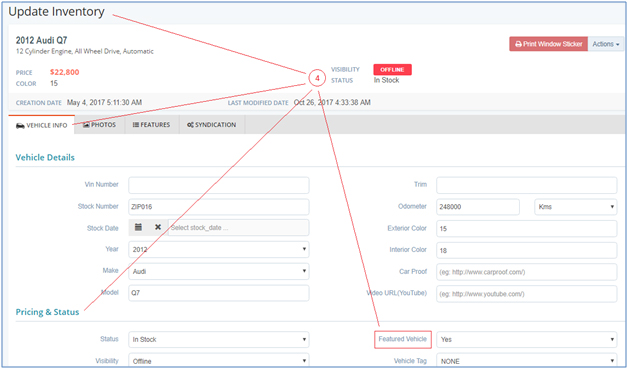
- Select the Save button
- Refresh your website, and the vehicle will show. Please note: a vehicle with the Status = Sold will not show as a Featured Vehicle, even if selected as ‘Yes‘ in the Featured Vehicle dropdown.